
UV Tools
$22
Easy to use Unwrap tools for Archviz, Gamedev and more.
- Version 3.5.00
- Released 2026.10
- Download 1.3 MB
Opens Gumroad's secure checkout in a new tab — this page stays open. Gumroad e-mails your download link.
Bought it here before? Get the latest version — we e-mail you a private link, no password.
Tweak
Move and Rotate texture in 3dsMax viewport.
Align
Align U or V axis to edge end or center.
Align World
Rotate UV islands so the V axis goes along the object Z. Same as Planar mapping.
Shift+Click to use world axes.
Stitcher
Stitch multiple elements simultaneously.
Transform
Move, Scale, Rotate UV by values.
Orient
Orient UV elements horizontally or vertically.
Rectify
Rebuild UV islands as even axis aligned quads that follow the geometry proportions.
Pick scale
Get UV scale from another polygon.
Scale in units
Rescale UV to any units value or to Real-world mapping.
Randomize
Random UV Flip, Rotate, Offset, Scale.
Checker
Use preinstalled checker textures or add your own.
Real-world mapping supported.
Original materials can be restored even after 3dsMax crash.
Relax
Relax polygons in viewport.
Normalize
Equalize texel density to min, max or average.
Show bitmaps
Show bitmaps on selected objects or selected polygons.
UV Morpher
Create flat object from mapping.
Can be used for Skin Wrap retopology and other techniques.
Transfer
Transfer selection between Unwrap and Poly.
Hide elements
Hide selected polygons to get access to occluded areas.
UV operations
Many useful UV operations.
Learn more in Help section.
Customize GUI
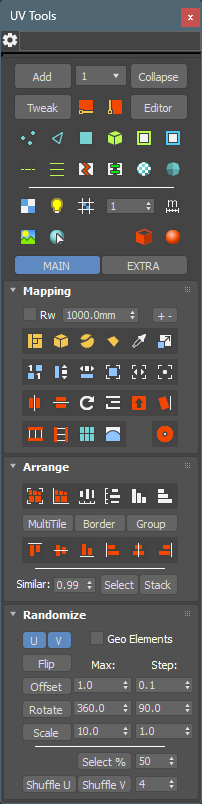
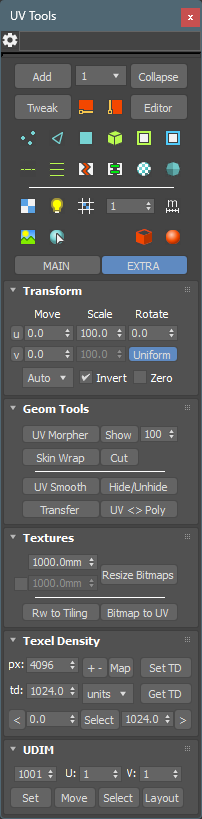
You can choose favorite rollouts for Main Tab and change their order.
Light and Dark themes with auto detection.
Actions
Assign any UV Tools action to hotkey or toolbar button.
Combine actions to create complex one-click mapping operations.
Every action has documented arguments for advanced users.
Installation
- Run “UVTools.mzp” in 3ds Max (Drop file in viewport or menu Scripting > Run script).
- Click Install
- Go to: Customize > Customize User Interface > Toolbars > Category “Nik Scripts – UV Tools”
- Add “Open UV Tools UI” button to toolbar
Uninstallation
- Run “UVTools.mzp”
- Click Uninstall
- Dlx file can not be deleted while 3ds Max is running. You will be asked to open a folder with this file to delete it manually after closing 3ds Max.
For UV Tools 2.x users
You don’t need to uninstall UV Tools 2, installer will delete all old files.
But you need to delete UV Tools 2 toolbar button manually. UV Tools 3 button should be added from “Nik Scripts – UV Tools” Category only.
Help
Every UV Tools control, grouped by section.
- Common
- Mapping
- Arrange
- Transform
- Randomize
- Geom Tools
- Textures
- Texel Density
- UDIM
- Settings
- Scripting API
 |
Open UV Tools Settings dialog. Right Click: Hide/Show Main UI. |
| Add |
Add Unwrap modifier to selected objects. Map Channel from dropdown will be used. Ctrl+Click: Clone any current modifier. Right Click: Find first Unwrap modifier. |
MAP CHANNEL  |
Set Unwrap Map Channel. Ctrl+Click: Add Unwrap with selected Map Channel. Alt+Click: Set Map Channel and reset UV (Additional query will popup). |
| Collapse |
Collapse to any current modifier. Ctrl+Click: Reset Xform selected objects. Right Click: Delete any current modifier. |
| Tweak |
Tweak mapping in viewport. Shift+Drag: Move with axis snap. Ctrl+Drag: Rotate. Angle step can be set in UV Tools settings. Alt+Click: Rotate +90 (clockwise). Alt+Ctrl+Click: Rotate -90 (counterclockwise). |
 |
Align U axis to edge end. Ctrl+Click: Align to edge center. Alt+Click: Align + reverse. |
 |
Align V axis to edge end. Ctrl+Click: Align to edge center. Alt+Click: Align + reverse. |
| Editor |
Open Unwrap UV Editor. Ctrl+Click: Open UV Editor with Filter Selected enabled. Right Click: Close UV Editor. |
 |
Vertex SubObject level. Ctrl+Click: Convert current Unwrap selection to Vertices. |
 |
Edge SubObject level. Shift+Click: Select outline Edges from current Unwrap selection. Ctrl+Click: Convert current Unwrap selection to Edges. |
 |
Polygon SubObject level. Ctrl+Click: Convert current Unwrap selection to Polygons. |
 |
Select UV elements (aka shells or islands). Shift+Click: Select geometry elements. Ctrl+Click: If selection didn't change (elements are already selected), then grow selection. Right Click: Keep only fully selected elements. Remove partially selected elements from selection. |
 |
Select UV borders (open edges). Ctrl+Click: Grow selected edges to UV borders. Right Click: Select longest opened edges. |
 |
Select Peel seams. Shift+Click: Add Peel seams to existing seams. Ctrl+Click: Replace Peel seams with current selection. Right Click: Clear all or selected Peel seams. |
 |
Loop selection. Ctrl+Click: Grow Loop. Right Click: Shrink Loop. |
 |
Ring selection. Ctrl+Click: Grow Ring. Right Click: Shrink Ring. |
 |
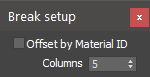
Break selection. Shift+Click: Break by Material ID. Ctrl+Click: Break loop of Unwrap selection. Right Click: Setup break by Material ID.
Offset by Material ID: If enabled then each ID will be offset by U and V to create MultiTile. Columns: Number of offsets by U axis (columns in MultiTile). |
 |
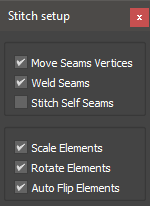
Stitch selected uv elements sequentially. You can select any number of uv elements on multiple objects. Stitching occurs in the order of faces numeration. Child element can only be stitched to 1 parent element, but you can stitch many children to the same parent. Child element could also be a parent for next child etc. If edges or vertices are selected, then all elements that share these edges will be stitched. If polygons are selected, then only the selected polygons will be stitched. Shift+Click: Weld shared vertices. Ctrl+Click: Loop edges or Select whole elements before Stitch. Right Click: Stitch setup.
Move Seams Vertices: Move children seams vertices to parent vertices. Weld Seams: Weld seams vertices. Stitch Self Seams: Stitch seams of the same element. Scale Elements: Scale children elements. Rotate Elements: Rotate children elements. Auto Flip Elements: Auto flip children elements. |
 |
Select by Material ID. Ctrl+Click: Select polygons with same ID on all Unwrap objects. |
 |
Grow polygon selection to smooth surfaces. Shift+Click: Select polygons with any matched Smooth Groups. Ctrl+Click: Select polygons with the exact same Smooth Groups. |
 |
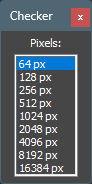
Assign checker material. Original materials are stored on objects and can be restored safely any time. Unnecessary checker textures can be disabled in UV Tools settings. You can add your own textures to the checker folder. Shift+Click: Assign previous checker from folder. Ctrl+Click: Open Texel Density Checker dialog.
Select item in the list to apply Texel Density checker material with selected resolution. Actual resolution of these bitmaps is 512px to reduce viewport filtering issue. UV Tools gets resolution of these bitmaps from their filenames and use tiling to mimic bigger resolutions. Right Click: Restore objects materials. |
 |
Enable checker self illumination. This will reveal shaded parts of object. |
 |
Disable checker texture tiling. Disable tiling in 3ds Max 2021 is broken. |
 |
Enable checker real-world size. |
TILE  |
Checker map tiling or real-world size. Depends on Checker real-world option. |
 |
Show material bitmaps in viewport. Switch selected objects bitmaps in the cyclic order 1>2>3>1>etc. If polygons are selected, then only bitmaps of selected material IDs will be used. Right Click: Hide all bitmaps of selected objects. |
 |
Select objects that share any materials with selected objects. Ctrl + Click: Select objects that have exact same materials as selected objects. |
 |
Backface cull On. Right Click: Backface cull Off. |
 |
Display material On. Switch display object materials and wireframe color. Right Click: Display material Off. |
|
Open Main or Extra tools tab. Tabs content is customizable in Settings. Right Click: Close/Open all rollouts in Tab. |
| Rw | Real-world UV size mode. |
|
UV SIZE
|
UV square size. If real-world mode is enabled then spinner will be inactive. UV size defines size of square in mapping procedures. For example: 500mm means mapping 500x500mm relative to geometry. |
| + - |
Add UV size by step. Default step is 500 units. For example, if UV size was 330mm and you click +- then UV size will change to 500mm, then 1000mm, 1500mm etc. Step can be changed in UV Tools Settings. Right Click: Substract size by step. |
 |
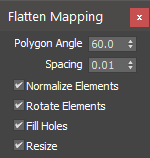
Apply Flatten mapping with custom settings. Shift+Click: Flatten By Material ID. Ctrl+Click: Flatten By Smooth Group. Right Click: Open Flatten mapping settings.
Resize: Resize UV after mapping. UV Size spinner value will be used. |
 |
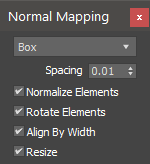
Apply Normal mapping with custom settings. Default mapping mode is Box. Right Click: Open Normal mapping settings.
Resize: Resize UV after mapping. |
 |
Apply Planar mapping in UV size. Mapping will be aligned to surface similar to UVW Map Normal Align. Shift+Click: Use world coorditates instead of local. Ctrl+Click: Apply Planar mapping for each UV element individually. All UV seams will be intact. Right Click: Open Planar mapping settings.
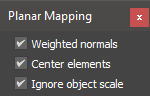
Weighted normals: Use weighted normals calculation. Large polygons affect normal direction more than small polygons. Center elements: Move elements to tile center (by Element only). Ignore object scale: Make planar gizmo size independent of object scale. |
 |
Apply Quick Peel mapping. Ctrl+Click: Reset before Peel. Right Click: Open Peel mapping settings.
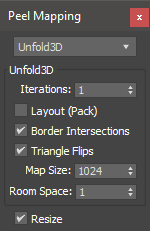
Method: Unfold3D (max 2022.2+) or LSCM. Unfold3D settings are copy of unwrap Peel Settings. Resize: Resize UV after mapping. |
 |
Pick UV size from object and rescale mapping. UV size is taken from picked polygon, and not from whole object. Shift+Click: Scale selected UV to chosen bitmap aspect ratio (proportions). Ctrl+Click: Scale By element. Right Click: Get selected faces UV size. |
 |
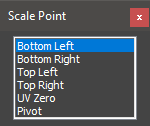
Scale to UV size. Shift+Click: Scale from point. Ctrl+Click: Scale By element. Right Click: Setup scale point.
Point that UV will be scaled from. |
 |
Normalize elements. Make texel density of elements the same. Shift+Click: Normalize by maximum. Ctrl+Click: Normalize by minimum. |
 |
Make elements height the same. Shift+Click: Match by maximum. Ctrl+Click: Match by minimum. Right Click: Match but ignore aspect ratio. |
 |
Make elements width the same. Shift+Click: Match by maximum. Ctrl+Click: Match by minimum. Right Click: Match but ignore aspect ratio. |
 |
Fit selection to 0-1 tile. Fit padding can be changed in UV Tools settings. Shift+Click: Fit ignoring aspect ratio. Ctrl+Click: Fit by element. Right Click: Fill mode. Fit to minimal side. |
 |
Center elements to texture tile. Ctrl+Click: Center by element. |
 |
Fit selection to tile horizontally. Shift+Click: Fit to tile vertically. Ctrl+Click: Fit by element. |
 |
Rotate UV +90°. If Invert Rotate in Settings is enabled then UV will be rotated to -90 degrees (texture in viewport will rotate to +90 degrees). Shift+Click: Rotate UV 180°. Ctrl+Click: Rotate by element. Right Click: Rotate UV -90°. Shift+Right Click rotates 180°. |
 |
Flip Horizontally. Shift+Left Click: Flip to Left. Use left border as mirror axis. Shift+Right Click: Flip to Right. Use right border as mirror axis. Ctrl+Click: Flip by element. |
 |
Flip Vertically. Shift+Left Click: Flip Up. Use top border as mirror axis. Shift+Right Click: Flip Down. Use bottom border as mirror axis. Ctrl+Click: Flip by element. |
 |
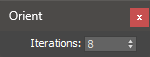
Orient elements horizontally to fit minimum bounding box. Shift+Click: Orient vertically. Right Click: Open Orient settings.
Iterations: Number of iterations to calculate the best rotation angle. Low values are faster to calculate, but precision may not be enough in some cases. Higher values calculates longer with higher precision. |
 |
Rotate uv islands so the V axis goes along the object Z, same as Planar mapping does. UV shape is not changed, only rotated. Shift+Click: Use world axes instead of local. |
 |
Rotate multiple elements by selected edges with automatic orientation. If edge is more horizontal than vertical, then element will be aligned horizontally. If no edges or vertices are selected then elements will be aligned by their longest open edges. Shift+Click: Force rotate to Vertical. Ctrl+Click: Force rotate to Horizontal. |
 |
Perform Unwrap Align Horizontally in Place. Shift+Click: Loop + Align. Ctrl+Click: Ring + Align. |
 |
Perform Unwrap Align Vertically in Place. Shift+Click: Loop + Align. Ctrl+Click: Ring + Align. |
 |
Rectify. Rebuilds uv islands as even axis aligned quads that follow the geometry proportions. Analogue of Blender Rectify / Follow Active Quads. Shift+Click: Use the same cell size for the whole island instead of the geometry proportions. |
 |
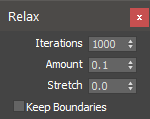
Relax Unwrap selection. If edges are selected then perform Relax By Edge Angles. Otherwise perform Relax By Polygon Angle. Ctrl+Click: Relax whole UV elements. Grow selection to elements before relax. Shift+Click: Relax until stop by Esc. Right Click: Open Relax settings.
|
 |
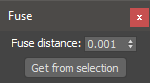
Collapse selected UV vertices by distance between them. Vertices are just moving to the same position without actual welding. Right Click: Open Fuse settings.
Fuse distance: Maximum distance, within which selected UV vertices will be fused. Get from selection: Get maximum distance between selected vertices and put value to Fuse distance. |

 |
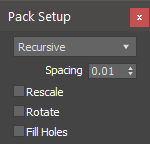
Pack inside texture Tile. Ctrl+Click: Pack in Tile by individual object. Right Click: Pack Setup.
Type: Packing algorythm. Linear, Recursive, Non-Convex, Unfold3D (max 2022.2+). Spacing: Space between elements. Rescale: Normalize elements. Make texel density of elements the same. Fill Holes: Fill holes with smaller elements. |
 |
Pack Together (without scaling UV to texture Tile). Ctrl+Click: Pack together by individual object. Right Click: Pack Setup. Same as Pack in Tile. |
 |
Distribute elements horizontally between min and max from selected. Shift+Click: Use Pack spacing instead of min-max distance. |
 |
Distribute elements vertically between min and max from selected. Shift+Click: Use Pack spacing instead of min-max distance. |
 |
Sort elements Horizontally by Height. Right Click: Sort in reverse order. |
 |
Sort elements Vertically by Width. Right Click: Sort in reverse order. |
|
|
Align elements or vertices/edges selection. Ctrl+Click: Align Element to selection. All partly selected elements will be aligned to current subselection. Shift+Click: Align to 0. Use U:0 or V:0 as target for alignment instead of 1. Results are different than aligning by the opposite side. Alt+Click: As Group override. The same as Group toggle but temporary. |
| MultiTile | Keep elements in current texture tile (UDIM) on Pack or Align. If disabled then 0:1 tile will be used. |
| Border | Align to texture tile border. |
| Group | Align selection as one Group to texture tile border. |
| Select |
Select similar uv elements. Selection based on element topology and geometry area. Value in Similar spinner is geometry area similarity. 1.0 means exactly the same area, 0.0 means that area will be ignored. Multiple selection is allowed. |
| Stack |
Stack similar uv elements. Move all similar elements to one position. Rotation and Scale remain the same. Shift+Click: Stack outside tile. Secondary elements will be moved to next texture tile (+1 by U axis) to prevent overlap with main elements. Usable for texture baking of stacked elements. Ctrl+Click: Stack and Group elements. Unwrap Groups are used here. Each group could be Packed as one element. Right Click: Ungroup selected elements. |


| U |
Move Right (U +1). Right Click: Move Left (U -1). |
| V |
Move Top (V +1). Right Click: Move Bottom (V -1). |
MOVE |
Offset mapping by U or V axis. Shift+Drag: Swap axis. |
SCALE |
Scale mapping by U or V axis. Shift+Drag: Swap axis. |
|
ROTATE |
Rotate mapping. |
| Uniform | Uniform scale switch. If enabled then scale. |
|
ACCURACY
|
Offset accuracy multiplier. Offset value will be multiplied by this factor. Auto mode works well in most cases. |
| Invert |
Invert transform direction. On: For viewport. Off: For UV editor. |
| Zero |
Enable Scale and Rotate from zero point (0,0 uv coordinates). On: Scale and Rotate from zero point. Off: Scale and Rotate from center. |


| U V | Enable/Disable randomize by U and V axis. |
| Geo Elements | Randomize by geometry elements instead of uv elements. |
| Offset |
Randomize UV position. Max value is used as range from -max to +max. Step=0. Elements will move to random value in range. Step>0. Elements will move to a divisible value in range. Example: max=10 step=2.5. Possible offset values: 0, 2.5, 5, 7.5, 10. Shift+Click: Randomize in 0-1 Tile. Elements that are larger than 0-1 tile will not be scaled down. Please use Fit tool instead. |
| Rotate |
Randomize UV rotation. Max value is used as range from -max to 0 or 0 to +max. It allows to rotate elements clockwise and vice versa. Step works the same way as offset. |
| Scale |
Randomize UV scale. Max value is used as range from -max to +max. Scale value is relative, so value of 10 means range from -10% to +10%. Be careful. Value of 100 means -100% +100% scaling and will lead to very tiny elements. |
| Select % | Select random elements in percent of current selection. |
| Shuffle U |
Shuffle elements in multiple stacks Horizontally in random order. Number of stacks controlled by spinner value. Each stack will contain the same number of elements if possible. |
| Shuffle V | Shuffle elements in multiple stacks Vertically in random order. |
| UV Morpher |
Create new flat object with Morpher Modifier that represents object UV mapping. Shift+Click: Repack before creating flat object. |
| Show |
Switch display Morpher objects as box. |
 |
Morpher value. |
| Skin Wrap |
Add Skin Wrap modifiers to selected objects with nearest morpher in list. Shift+Click: Add disabled Skin Wrap modifiers. Ctrl+Click: Pick Morpher object manually. |
| Cut |
Boolean cut selected objects to Morpher borders. Ctrl+Click: Pick cut object manually. |
| UV Smooth |
Add Edit Poly modifier and create Smooth Groups by mapping elements. Ctrl+Click: Create Smooth Groups in Editable Poly baseobject. |
| Hide/Unhide |
Hide selected elements. Ctrl+Click: Hide selected polygons. Right Click: Unhide all polygons. |
| Transfer |
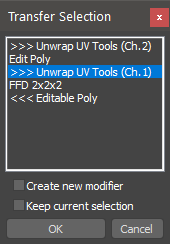
Transfer subobject selection between Unwrap and EditablePoly. Selection will be sent to nearest valid modifier. If no valid modifiers are found, then new modifier will be added automatically. Check "Geometry Tools" video. Shift+Click: Search valid modifiers only above current modifier. Send selection Up the stack. Ctrl+Click: Search valid modifiers only below current modifier. Send selection Down the stack. Alt+Click: Don't search and send selection to new modifier. Can be combined with Shift/Ctrl. Right Click: Open Transfer Selection dialog.
Current modifier is marked by <<<. You can send selection to modifiers that marked by >>>. If current modifier is Unwrap, then you can send selection to Edit Poly and Editable Poly and vice versa. Create new modifier: Send selection to new modifier. Modifier will be added above selected item in list. Keep current selection: Transferred selection will be added to current selection. |
| UV <-> Poly |
Create new object that represents object UV mapping on current Map Channel. Non-destructive Channel Info method is used here. All UV channels remain unaffected. This flat object could be used to deform it with Editable Poly tools and then send back to UV (read next). Ctrl+Click: Pick Poly object and use its geometry as UV mapping for selected object. |
|
Size
|
Textures size. |
| V | Enable V size. |
| Size to Tiling |
Set tiling in selected textures based on entered size and Unwrap selection. Textures should be selected in Material Editor. |
| Rw to Tiling |
Convert real-world mapping to regular. Real-World in object textures will be disabled and tilings/offsets will be setup in order to match previous real-world scale. UV will be scaled to fit texture Tile. Ctrl+Click: Scale UV to maximum real-world texture size. |
| Bitmap to UV |
Transfer bitmap transformations to UV (tiling, offset, rotation). UV of each submaterial will be transformed individually based on first bitmap properties. All bitmaps on selected objects will reset their transformations, tiling will be set to 1:1, offset and rotation to 0. |
|
px:
|
Texture width in pixels. Texture aspect ratio is considered to be 1:1 |
| + - |
Increase resolution to closest power of 2 (64, 128, 256 etc.). Right Click: Decrease resolution to closest power of 2. |
| Mtl |
Get resolution of first material texture and put value in the spinner. |
|
td:
|
Texel Density value. |
| units |
Texel Density units per pixel. First item in list (units) is current 3ds Max system units. |
| Set TD |
Apply Texel Density to selected UV elements. Shift+Click: Scale from point. Ctrl+Click: Scale selected UV as whole group instead of per element. Right Click: Setup scale point.
Point that UV will be scaled from. |
| Get TD |
Get Texel Density of UV selection. Prints 3 td values: Min, Max and Average. Ctrl+Click: Paste avg value in td spinner. |
| Select |
Select faces whithin TD range. TD range minimum value is in the left spinner, maximum value is in the right spinner. |
| < |
Select faces with TD lower than Min value. |
| > |
Select faces with TD higher than Max value. |


 |
UDIM index value. |
| Set |
Move selected elements to UDIM. |
| Move |
Offset selected elements to next UDIM (UDIM +1). Shift+Click: Offset by V axis (UDIM +10). Ctrl+Click: Offset in the negative direction (-1 or -10).
|
| Select |
If something is selected: Select all elements which share the same UDIMs as selection. If selection is empty: Select elements in UDIM index value (top left spinner). Right Click: Get UDIM index from selection. |
| Layout |
Place all elements of each selected object in a different UDIM sequentially starting from UDIM index value. Right Click: Open UDIM Layout Setup. 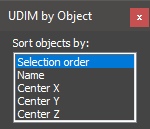 Objects sorting method.
If initial UDIM is 1001 then first object will be in UDIM 1001, second object in 1002 etc.
|
| Save Unwrap setup |
Save current Unwrap modifier setup as Default. All options from modify panel will be saved and used for new Unwrap modifiers that you create by pressing Add button. |
| Collapse to Poly |
Convert objects to EditablePoly after collapse modifiers. |
| Restore Map Channel 1 |
Restore Map Channel 1 if Channel is not found in current modifier. |
| Rename Unwrap mod | Rename Unwrap modifier to "Unwrap UV Tools". |
| Use Unwrap Pro plugin |
Add Unwrap Pro modifier instead of regular Unwrap. Available only if Unwrap Pro plugin in installed. |
| Remember last tab |
Activate last used tab on start. |
| Auto dialog height |
Fit dialog height to opened rollouts.
|
| Main Tab Rollouts |
Rollouts used in Main Tab. Others will be placed in Extra Tab. |
| Stop after closing UI | Stop Tweaker after closing UV Tools main dialog. |
| Display info | Display tweak values in viewport. |
| Select Unwrap Group | Tweak all elements in Unwrap Group simultaneously. |
| Ctrl + Drag angle | Tweak Ctrl+Drag rotate angle. |
| Alt + Click angle | Tweak Alt+Click rotate angle. |
| Zoom Extents Selected |
Auto zoom extents selected after Open UV Editor. |
| Select by Element state |
If enabled then Select By Element checkbox in Editor will be switched according to subobject configured below. |
| Invert Rotation | Invert Rotation by 90 degrees function. On - for Viewport, Off - for UV Editor. |
| Size + - step | UV size + - step. |
| Fit Spacing |
UV padding used in Fit function. |
| Shuffle Spacing |
UV padding used in Random Shuffle function. |
| Zero W position |
Reset W position when calculating uv area.
|
| Ignore object scale |
Ignore object scale when calculating geometry area.
|
| Auto break selection |
Automatically break UV selection before mapping operation. The option works only in tools where it makes sense, for example Rotate or Scale, but not in Normalize Elements.
|
| Unique per object |
By default all checker materials are unique materials to be able to control them independently. This leads to viewport redraw delay if you apply materials on many objects. When this option is disabled only 1 material will be created per checker assignment and therefore viewport will redraw much faster. |
| Checker Smart size |
Guess checker size and real-world state from object textures. Maximum size will be used as checker size. |
| Move up |
Reorder checkers list by moving selected items up. |
| Move down |
Move selected items down. |
| Open checkers folder |
Open checkers folder in the Explorer. |
| Active Checkers | List of enabled Checker textures. You can disable unnecessary textures by deselecting them. |
| DLX status |
UV Tools has C++ dlx extension which accelerate many functions. The script is fully functional without the extension, but those functions will run slower while dealing with many UV elements. Dlx extension should load on 3dsMax startup and can't be unloaded while 3dsMax is running. Therefore 3dsMax needs to be restarted if new dlx comes with the script update. DLX status field shows the current state of accelerator: Active: Dlx is loaded and used. Waiting for restart: Old dlx was disabled and new one is waiting for 3dsMax restart. Version mismatch: The script version doesn't match dlx version for some reason. Reinstall the script. Disabled manually: Dlx is succesfully loaded but disabled manually. Not loaded: Dlx is not loaded for some reason. Probably dlx accelerator is not compiled for your 3dsMax version at the moment. |
| Enable DLX Accelerator |
Disable loaded dlx extension. Many UV Tools operations will run slower. Use only for dlx debug purposes. |
| DLX warning |
Display warning message in statusbar when dlx is not active. |
| Open script folder |
Open UV Tools script folder in the Explorer. |
Functions of the ::ns_uvtools struct that the macros of Nik Scripts > UV Tools call. A script can call them directly with its own values.
They work on the current Unwrap sub-object selection. An empty selection, or sub-object level 0, means the whole object. Check that the tool is loaded before the call: if isStruct ::ns_uvtools do ::ns_uvtools.Unw_Fit().
Dialog
::ns_uvtools.OpenUi resetpos:falseOpen uvtools main dialog. <boolean> resetpos - Reset UI position. |
::ns_uvtools.Destroy unload:offKill uvtools UI and painters. <boolean> unload - This instance is being replaced (the script is evaluated again). Its painter and redraw callback are bound to it, so they are stopped whatever tweak_stopclose says. |
::ns_uvtools.TpiTweak.Switch()Tweak UV in viewport. |
::ns_uvtools.TpiAlign.Switch axisAlign U or V to the edge in the viewport. <integer> axis - 1 align U, 2 align V. |
Unwrap modifier
::ns_uvtools.UnwrapModAdd chan:1 forceFaceMode:onAdd unwrap modifier with given channel. <integer> chan - Mapping channel.<boolean> forceFaceMode - If true then force faces subselection mode. |
::ns_uvtools.Unw_SetMapChannel chan:1 uvreset:offSet unwrap mapping channel. <integer> chan - Mapping channel.<boolean> uvreset - If true then reset mapping on new channel. Use existing mapping. |
::ns_uvtools.ModifierClone()Clone current modifier. |
::ns_uvtools.ModifierCollapse topoly:onCollapse current modifier. <boolean> topoly - Convert to Editable Poly before collapse. |
::ns_uvtools.ModifierDelete()Delete current modifier. |
::ns_uvtools.UnwrapModSearch()Select first unwrap modifier in modifier stack. Only for 1 object. |
::ns_uvtools.Unw_SelectModObjects()Select objects that has the same Unwrap modifier. |
::ns_uvtools.XformReset()ResetXform selected objects. |
::ns_uvtools.Unw_OpenEditor selectedOnly:off zoomSelected:onFind unwrap and open uv editor. <boolean> selectedOnly - Enable Filter Selected Polygons.<boolean> zoomSelected - Zoom Extents Selected after opening Editor. |
::ns_uvtools.Unw_CloseEditor()Close Unwrap uv editor. |
Selection
::ns_uvtools.Unw_ConvertSubLevel lvlConvert unwrap selection to other sublevel. <integer> lvl - Sublevel to convert. |
::ns_uvtools.Unw_SelectOutline()Select outline uv edges from current selection. |
::ns_uvtools.Unw_SelectUvElements grow:falseSelect unwarp uv elements. <boolean> grow - Grow if selection didn't change. |
::ns_uvtools.Unw_ShrinkUvElement()Shrink unwarp subselection to fully selected uv elements. |
::ns_uvtools.Unw_SelectGeomElements()Select unwrap geometry elements. |
::ns_uvtools.Unw_SelectOpenEdges()Select uv border edges from current subselection or all. |
::ns_uvtools.Unw_GrowToOpenEdges()Grow unwrap selected edges to open edges. |
::ns_uvtools.Unw_SelectLongestEdges nestedRun:off fixW:unsuppliedSelect longest opened uv edges. <boolean> nestedRun - Function run from other function. DEV ONLY.<boolean> fixW - Flatten W after the operation. Default: the map_fixw setting. |
::ns_uvtools.Unw_PeelSeamsReplace()Convert selected edges to peel seams. |
::ns_uvtools.Unw_PeelSeamsAdd()Add selected edges to peel seams. |
::ns_uvtools.Unw_PeelSeamsSelect()Select unwrap peel seams on all or selected elements. |
::ns_uvtools.Unw_PeelSeamsClear()Clear unwrap peel seams on all or selected elements. |
::ns_uvtools.Unw_LoopRing mode dir:0Unwrap loop and ring. Full loop/ring, grow and shrink. <integer> mode - If 1 then loop. Else ring.<integer> dir - 0 full, -1 shrink, 1 grow. |
::ns_uvtools.Unw_BreakSelection loop:offBreak selected unwrap subobjects. <boolean> loop - If true then loop before break. |
::ns_uvtools.Unw_BreakById idOffset:offBreak unwrap selection by material id. <boolean> idOffset - Offset each ID to next tile. |
::ns_uvtools.Unw_WeldShared()Weld unwrap shared vertices. |
::ns_uvtools.Unw_Stitch moveseams:on weldseams:on selfseams:off scaleelem:on rotateelem:on autoflip:on grow:on fixW:unsuppliedStitch multiple unwrap elements. <boolean> moveseams - Move shared vertices of child elements to parents.<boolean> weldseams - Run unwrap weld after stitch.<boolean> selfseams - Stitch self element seams.<boolean> scaleelem - Scale child elements.<boolean> rotateelem - Rotate child elements.<boolean> autoflip - Unify flip of child and parent elements.<boolean> grow - Grow faces to elements or loop edges before stitch.<boolean> fixW - Flatten W after the operation. Default: the map_fixw setting. |
::ns_uvtools.Unw_SelectById allNodes:offSelect unwrap faces with same material ids as all selected faces. <boolean> allNodes - Select same material ids in all models. |
::ns_uvtools.Unw_GrowToSmoothSurf()Grow Unwrap selection to smoothed surfaces. |
::ns_uvtools.Unw_SelectBySmooth strict:offSelect faces with same smooth group (SG). <boolean> strict - If true then use exact same SG bits. Else use any SG bit. |
::ns_uvtools.Unw_SimilarSelect similarity:0.99Select similar unwrap elements based on topology and geometry area. <float> similarity - Similarity of elements geometry area. 1.0 - same area, 0.0 - any area. |
::ns_uvtools.Unw_SimilarStack similarity:0.99 createGroups:off outside:off |
::ns_uvtools.Unw_UngroupSelection()Ungroup unwrap selection. |
::ns_uvtools.TransferSelectionFast direction:0 addNew:offTransfer subselection between Unwrap and Editable Poly. Search modifier to transfer and add new if not found. <integer> direction:0 - Search in all stack. 1 - Search Up. -1 - Search Down. <boolean> addNew - Force add new modifier. |
::ns_uvtools.TransferSelectionDialog()Open transfer subselection dialog. |
Mapping
::ns_uvtools.Unw_MapFlatten mode:0 ang:60 spac:0.01 norm:on rot:on fill:on uvSize:Apply unwrap flatten mapping. <integer> mode - 0 polygon angle, 1 by id, 2 by smooth group.<float> ang - Polygon angle.<float> spac - Spacing.<boolean> norm - Normalize elements.<boolean> rot - Rotate elements.<boolean> fill - Fill holes.<float> uvSize - If supplied then resize to given uv size. |
::ns_uvtools.Unw_MapNormal type:5 spac:0.01 norm:on rot:on align:on uvSize:Apply unwrap normal mapping. <integer> type - 1 "Back/Front", 2 "Left/Right", 3 "Top/Bottom", 4 "Box No Top", 5 "Box", 6 "Diamond"<float> spac - Spacing.<boolean> norm - Normalize elements.<boolean> rot - Rotate elements.<boolean> align - Align by width.<float> uvSize - If supplied then resize to given uv size. |
::ns_uvtools.Unw_QuickPeel resetpeel:off uvsize:Apply Quick Peel mapping to unwrap selection. <boolean> resetpeel - Reset before Peel.<float> uvsize - If supplied then resize to given uv size. |
::ns_uvtools.Unw_Unfold3d resetpeel:off uvsize: iter:1 pack:off border:on flip:on mapsize:1024 room:1Apply new Unfold 3d mapping to unwrap selection (max 2022.2). <boolean> resetpeel - Reset before Unfold.<float> uvsize - If supplied then resize to given uv size.<integet> iter - Iterations.<boolean> pack - Pack (Layout UVs).<boolean> border - Border intersections.<boolean> flip - Triangle flips.<integet> mapsize - Map size.<integet> room - Room space. |
::ns_uvtools.Unw_MapPlanar uvSize inWorld:off weighted:on ignoreObjScale:onApply unwrap planar mapping and scale to given uv size. <float> uvSize - UV size to scale.<boolean> inWorld - Align UV to World coordinates instead of Local.<boolean> weighted - Use weighted normals.<boolean> ignoreObjScale - Make planar gizmo independent of object scale. |
::ns_uvtools.Unw_MapPlanarByElement uvSize inWorld:off weighted:on elemcenter:on ignoreObjScale:onApply unwrap planar mapping in size by element. <float> uvSize - UV size to scale.<boolean> inWorld - Align UV to World coordinates instead of Local.<boolean> weighted - Use weighted normals.<boolean> elemcenter - Center elements after mapping.<boolean> ignoreObjScale - Make planar gizmo independent of object scale. |
Scale and fit
::ns_uvtools.Unw_ScaleToPick byElement:offGet uv square size from picked face. Scale UV to this square size. <boolean> byElement - Apply to each uv element individually. |
::ns_uvtools.Unw_ScaleToBitmap fixW:unsuppliedScale unwrap in aspect ratio of bitmap. <boolean> fixW - Flatten W after the operation. Default: the map_fixw setting. |
::ns_uvtools.Unw_ScaleToSize val scalePoint:0 byElement:off nestedRun:off autobreak:off fixW:unsuppliedScale UV to given square size. <float> val - Square size.<integer> scalePoint - Scale center point:0 - "Center" (default) 1 - "Bottom Left" 2 - "Bottom Right" 3 - "Top Left" 4 - "Top Right" 5 - "UV Zero" 6 - "Pivot" <boolean> byElement - Apply to each uv element individually.<boolean> autobreak - Break selection before procedure.<boolean> nestedRun - Function run from other function. DEV ONLY.<boolean> fixW - Flatten W after the operation. Default: the map_fixw setting. |
::ns_uvtools.Unw_Normalize method:0 fixW:unsuppliedNormalize uv size. Make texel density of unwrap subselection the same. <integer> method - 0 to average texel density, 1 to min, 2 to max.<boolean> fixW - Flatten W after the operation. Default: the map_fixw setting. |
::ns_uvtools.Unw_FitSide axis byElement:off spacing:0.01 autobreak:offFit unwrap subselection horizontally or vertically. <integer> axis - 1 fit by x, 2 fit by y.<boolean> byElement - Apply to each uv element individually.<float> spacing - Spacing between tile and uv elements.<boolean> autobreak - Break selection before procedure. |
::ns_uvtools.Unw_MatchScale axis method:0 keepRatio:onMake width or height of selected uv elements the same. <integer> axis - 1 match by x, 2 match by y.<integer> method - 0 to average, 1 to min, 2 to max.<boolean> keepRatio - Keep uv ratio when scale. |
::ns_uvtools.Unw_Fit byElement:off keepRatio:on fill:off spacing:0.01 autobreak:offFit unwrap subselection to uv tile. <boolean> byElement - Apply to each uv element individually.<boolean> keepRatio - Keep uv ratio when scale.<boolean> fill - Fill mode. Fit minimal uv side to tile.<float> spacing - Spacing between tile and uv elements.<boolean> autobreak - Break selection before procedure. |
::ns_uvtools.Unw_Center byElement:off autobreak:offMake unwrap subselection centered to uv tile. <boolean> byElement - Apply to each uv element individually.<boolean> autobreak - Break selection before procedure. |
::ns_uvtools.Unw_Relax oneclick:off grow:on iter:500 rstretch:0 amount:0.1 bounds:offApply unwrap relax. Has a relax bug when you cancel relax procedure with Esc. If sublevel == 2 then relax by edge angle, else by face angle. <boolean> oneclick - Relax until stop.<boolean> grow - Grow selection to elements before relax.<integer> iter - Relax iterations. Will be divided by 20 and applied 20 times for viewport update.<float> rstretch - Stretch value.<float> amount - Amount value. Relax strength.<boolean> bounds - Keep boundaries. |
::ns_uvtools.Unw_SizeToTiling u vSet tiling in selected textures based on entered size and Unwrap selection. <float> u - Texture U size.<float> v - Texture V size. |
::ns_uvtools.Unw_ConvertRwToTiling fittile:off spacing:0.01Convert real-world UV and bitmaps to regular tiling system. <boolean> fittile - If true then UV will be scaled to fit texture tile, else UV will fit maximum bitmaps size.<float> spacing - Fit spacing value. |
Arrange
::ns_uvtools.Unw_Pack method:0 byobject:false spacing:0.01 fit:off rot:off fillholes:off norm:off autobreak:off intile:off inplace:onPerform unwrap packing. <integer> method - 0 recursive, 1 linear, 2 non-convex (2017+), 3 Unfold3D (2022+).<boolean> byobject - Pack each object individually.<float> spacing - Spacing between elements.<boolean> fit - Fit elements to tile.<boolean> rot - Rotate elements.<boolean> fillholes - Fill holes.<boolean> norm - Normalize elements.<boolean> intile - Keep in current tile.<boolean> inplace - Move result to initial location instead of 0.0.<boolean> autobreak - Break selection before procedure. |
::ns_uvtools.Unw_Distribute axis:1 spacing:Distribute elements by given axis. <integer> axis - 1 distribute by U, 2 distribute by V.<float> spacing - Spacing between elements. If not supplied then distribute in bounding box. |
::ns_uvtools.Unw_Sort axis spacing:0.01 reverse:offSort elements by width or height. <integer> axis - 1 sort by width, 2 sort by height.<float> spacing - Spacing between elements.<boolean> reverse - Sort in reverse order. |
::ns_uvtools.Unw_AlignVerts alignTo:1 axis:x_axis toBorder:off intile:off asGroup:off toZero:offAlign uv verts. <ineger> alignTo - 1 min, 2 max, 3 center.<point3> axis - x_axis, y_axis.<boolean> toBorder - If true then align uv to tile border.<boolean> intile - Keep in current tile.<boolean> asGroup - If true then align subselection as one group.<boolean> toZero - Align to 0 instead of 1. |
::ns_uvtools.Unw_AlignElements alignTo:1 axis:x_axis toBorder:off intile:off asGroup:off autobreak:off toZero:offAlign uv elements. <ineger> alignTo - 1 min, 2 max, 3 center.<point3> axis - x_axis, y_axis.<boolean> toBorder - If true then align uv to tile border.<boolean> intile - Keep in current tile.<boolean> asGroup - If true then align subselection as one group.<boolean> autobreak - Break selection before procedure.<boolean> toZero - Align to 0 instead of 1. |
::ns_uvtools.Unw_AlignElemToVerts alignTo:1 axis:x_axis toBorder:off intile:off toZero:offAlign uv elements to selected verts. <ineger> alignTo - 1 min, 2 max, 3 center.<point3> axis - x_axis, y_axis.<boolean> toBorder - If true then align uv to tile border.<boolean> intile - Keep in current tile.<boolean> toZero - Align to 0 instead of 1. |
::ns_uvtools.Unw_Align alignVal axis toBorder asGroup autobreak:off intile:offAlign uv subselection. <float> alignVal - 0 min, 0.5 center, 1 max.<integer> axis - 1 align by x, 2 align by y.<boolean> toBorder - If true then align uv to tile border.<boolean> asGroup - If true then align subselection as one group.<boolean> autobreak - Break selection before procedure.<boolean> intile - Keep in current tile. |
Transform
::ns_uvtools.Unw_TranslateUV u vMove unwrap subselection. <float> u - U offset value.<float> v - V offset value. |
::ns_uvtools.Unw_RotateUV ang byElement:off autobreak:offRotate unwrap subselection to given angle. <float> ang - Rotate angle.<boolean> byElement - Apply to each uv element individually.<boolean> autobreak - Break selection before procedure. |
::ns_uvtools.Unw_FlipUV axis byElement:off flippoint:3 autobreak:offFlip unwrap subselection by given axis. <integer> axis - 1 flip by x, 2 flip by y.<boolean> byElement - Apply to each uv element individually.<integer> flippoint - 1 min, 2 max, 3 center.<boolean> autobreak - Break selection before procedure. |
::ns_uvtools.Unw_OrientByLength vertical:off autobreak:off iter:8Orient selected uv elements by longest bounding box side. <boolean> vertical - If true then orient longest side vertically, else horizontally.<boolean> autobreak - Break selection before procedure.<integer> iter - Number of iterations to find best rotation angle. Default: 8. |
::ns_uvtools.Unw_AlignWorld autobreak:off inWorld:offRotate every selected uv island so that its U/V axes match the planar projection of Unw_MapPlanarByElement: V goes along the object Z axis projected on the face plane (object Y for a horizontal face) and U along the in-plane horizontal, using the very same GetTmFromFaceNormal basis. Works for editable mesh and editable poly, the island shape is not changed, only rotated. The angle is the length weighted least squares fit of the island to that projection, so the dominant (largest area) plane of the island decides the result: the edges of tiny bevel / side faces are short in uv as well and cannot drag the angle. <boolean> autobreak - Break selection before procedure.<boolean> inWorld - Align UV to World coordinates instead of Local. |
::ns_uvtools.Unw_RotateByEdge axis:0Rotate selected ev elements to their selected edges or vertices. <integer> axis:0 - Nearest axis. 1 - X axis. 2 - Y axis. |
::ns_uvtools.Unw_AlignInPlace horiz loop:off ring:offUnwrap align in place. <boolean> horiz - True: horizontally, False: vertically.<boolean> loop - Loop before align.<boolean> ring - Ring before align. |
::ns_uvtools.Unw_Rectify grid:off autobreak:offRectify uvs. Turns the base quad of each uv island into an axis aligned rectangle and propagates uvs over the island keeping geometry proportions (analog of Blender Rectify / Follow Active Quads). The island is always snapped to an even grid: every row / column of the grid gets one coordinate. The lattice uses one isotropic scale, so the UV length of an edge is proportional to its geometry length (the island follows the geometry in both directions). Every island keeps the texel density it had: the snapped result is scaled by one isotropic factor so its uv area matches the original one (the geometry area of the island does not change, so uv area over geometry area, the texel density, stays the same), and it is put back on the centre of its original bounding box. The island is no longer fitted to the original bounding box, so its overall size can change while the density stays. A selection without quads (line alignment) is not adjusted, and neither is a collapsed island. The maxscript fallback walk (dlx not ready) applies the same fit. The selection is prepared like in the other tools: vertex and edge sublevels are converted to faces, an empty selection (including sub-level 0) means the whole object. The rectifier works straight on the selection: the uv elements (islands) are not collected, the walk stops on a boundary / seam by itself and every pass snaps the region it walked. When there is nothing to walk (there are no quads in the selection) the selected uvs are straightened to a line instead. The sub-object level never changes the result, it only defines the selection. <boolean> grid - Regular grid instead of the geometry proportions: every cell of the island gets the same size (the size of the anchor quad), so the result does not depend on the edge lengths of the model.<boolean> autobreak - Break selection before procedure. |
::ns_uvtools.Unw_FuseVerts threshold:0.01Fuse selected unwrap vertices by distance between them. <float> threshold - Distance between vertices to collapse. |
Randomize
::ns_uvtools.Unw_RandomizeSimple offsetMax: offsetStep: rotateMax: rotateStep: scaleMax: scaleStep: flip: byGeo:off autobreak:offRandomize UV/geom elements. <point3> offsetMax - Offset max value. Example: [30,0,0] - offset +-30 by U.<float> offsetStep - Offset step.<float> rotateMax - Rotation max angle.<float> rotateStep - Rotation step.<point3> scaleMax - Scale max value. Example: [0.25,0,0] - scale to 0.75-1.25 by U.<float> scaleStep - Scale step.<point3> flip: - Flip axes. Example: [1,0,0] flip by U.<boolean> byGeo - If true then randomize by geometry elements. Else by uv elements.<boolean> autobreak - Break selection before procedure. |
::ns_uvtools.Unw_RandomizeInTile offset:[1,1,0] offsetStep: byGeo:off autobreak:offRandomize UV/geom elements position inside 0-1 tile. <point3> offset - Offset axes to randomize. [1,0,0]/[0,1,0]/[1,1,0]<float> offsetStep - Offset step.<boolean> byGeo - If true then randomize by geometry elements. Else by uv elements.<boolean> autobreak - Break selection before procedure. |
::ns_uvtools.Unw_RandomSelect percentage byGeo:offSelect random elements from current unwrap selection. <float> percentage - Selection percentage.<boolean> byGeo - If true then randomize by geometry elements. Else by uv elements. |
::ns_uvtools.Unw_RandomShuffle div axis gap:0.01 byGeo:off autobreak:offShuffle elements in multiple stacks. <integer> div - Number of stacks.<integer> axis - 1: x, 2: y.<float> gap - Minimum gap between stacks.<boolean> byGeo - If true then stack geometry elements. Else uv elements.<boolean> autobreak - Break selection before procedure. |
Geom tools
::ns_uvtools.UvMorpherCreate chan:1 repack:offCreate flat object that represents uv mapping and add Morpher modifier. <integer> chan - Mapping channel.<boolean> repack - If true then repack uv before flatten. |
::ns_uvtools.UvMorpherShowAsBox()Switch display Morpher objects as box. |
::ns_uvtools.UvMorpherSkinAdd picktarget:off disabled:offFind corresponding Morphers and add Skin Wrap modifiers to their nodes. <boolean> picktarget - Pick morpher object manually.<boolean> disabled - Add disabled Skin Wrap modifiers. |
::ns_uvtools.UvMorpherSkinCut picktarget:offCut selected objects to corresponding Morpher borders. <boolean> picktarget - Pick cut object manually. |
::ns_uvtools.Unw_UvToSmooth tobase:offCreate Smooth Groups by uv elements. <boolean> tobase - Create Smooth Groups on baseobject instead of new EditPoly modifier. |
::ns_uvtools.Unw_HideGeomPolys grow:onHide selected polygons. <boolean> grow - Grow selection to uv elements. |
::ns_uvtools.Unw_UnhideGeomPolys()Unhide all hidden polygons. |
::ns_uvtools.ChaninfoUvToPoly chan:1Transfer uv channel to new Editable Poly object geometry. <integer> chan - Mapping channel. |
::ns_uvtools.ChaninfoPolyToUv chan:1Transfer geometry of picked object to uv channel of selected object. <integer> chan - Mapping channel. |
Textures and display
::ns_uvtools.CycleViewportBitmaps disableAll:offShow bitmaps of selected objects in viewport and switch them (1>2>3>1). <boolean> disableAll - If true then hide all bitmaps of selected objects. |
::ns_uvtools.SelectBySameMaterial modeSelect objects with same materials as selection. <integer> mode - 1: Any shared materials, 2: Exact same materials. |
::ns_uvtools.DisplayColorMaterial state:Switch display material mode. <boolean> state - Display material state. If unsupplied then switch on/off |
::ns_uvtools.BackfaceCullSwitch state:Switch backface cull for selected objects. <boolean> state - Backface cull state. If unsupplied then switch on/off |
::ns_uvtools.Unw_BitmapCoordsToUv()Transfer bitmap transformations (tiling, offset, rotation) to UV. First bitmap in each material will be used. |
Texel density
::ns_uvtools.Unw_TexelDensityGet texres unit fixW:unsuppliedGet [min,max,avg] Texel Density of unwrap selection. <float> texres - Texture resolution value.<integer> unit - unit array index #("units","cm","m","in","ft").<boolean> fixW - Flatten W after the operation. Default: the map_fixw setting. |
::ns_uvtools.Unw_TexelDensitySelect texres unit tdRangeSelect faces by Texel Density range. <float> texres - Texture resolution value.<integer> unit - unit array index #("units","cm","m","in","ft").<point2> tdRange - Texel Density range. |
::ns_uvtools.Unw_TexelDensitySet texres density unit asGroup:off scalePoint:0 autobreak:falseSet Texel Density of selected elements. <float> texres - Texture resolution value.<float> density - Texel density value.<integer> unit - unit array index #("units","cm","m","in","ft").<boolean> asGroup - Scale all selected elements as one group.<integer> scalePoint - Scale center point:0 - "Center" (default) 1 - "Bottom Left" 2 - "Bottom Right" 3 - "Top Left" 4 - "Top Right" 5 - "UV Zero" 6 - "Pivot" <boolean> autobreak - Break selection before procedure. |
UDIM
::ns_uvtools.Unw_UdimSet udimMove selection to UDIM index. <integer> udim - UDIM index. |
::ns_uvtools.Unw_UdimShift shift_offsetMove selection by offset in UDIM range. <point3> - Offset in UDIM range. |
::ns_uvtools.Unw_UdimByObj udim objSorting:1Move selection to given UDIM and offset by object. <integer> udim - UDIM index.<integer> uobjSorting - Objects sorting method: 1: "Selection order" 2: "Name" 3: "Center X" 4: "Center Y" 5: "Center Z" |
::ns_uvtools.Unw_UdimByMaterial()Move each uv element to UDIM (id+1000). |
::ns_uvtools.Unw_UdimSelect udim:1001Select elements in the same UDIM as selection. If selection is empty then select elements in the given UDIM. <integer> UDIM - UDIM index in case of empty selection. |
Video
Due to constant script updates some of the functions shown in these videos can work different in the latest script version. Check Help section to find more actual information.
[3.5.00] – 2026.10
- New. Rectify. Rebuilds uv islands as even axis aligned quads that follow the geometry proportions. Shift+Click for the same size cells.
- New. Align World. Rotates uv islands so V axis goes along the object Z, same as Planar Mapping. Shift+Click to use world axes.
- Improved. Rotate. The R- button is gone, Right Click on R+ rotates the other way.
- Removed. Straighten. Rectify replaces it.
- Fix. Fit Spacing and Shuffle Spacing spinners follow 3ds Max spinner precision.
[3.4.01] – 2026.07
- Fix. Copy Status Bar to clipboard .NET error.
- Fix. Restored legacy Unw_Align function for macroscripts.
[3.4.00] – 2026.06
- New. Reworked Randomizer.
- New. Reworked Align functions. Ctrl+Click: align elements by subselection. Shift+Click: align to 0.
- New. Fit selection height or width to tile.
- New. Distribute elements by specific axis. Shift+Click to use exact spacing.
- New. Hide/Unhide geometry faces now works with EditableMesh.
- New. Set TD from custom point like Scale tool.
- New. Active checkers can now be reordered in settings.
- New. Unique checkers per object can be disabled in settings.
- New. Checkers can now be reordered.
- New. Better status bar. Right click will copy text to clipboard.
- Fix. Tweak/Align didn’t work on backside faces.
- Fix. Tweak/Align didn’t work through hidden faces.
- Fix. Some functions didn’t work with empty edges selection.
- Fix. Relax was hard to interrupt with Esc on large iterations.
[3.3.08] – 2026.05
- Fix. “ManagedServices.dll” error in max 2027 once and for all.
- Fix. Texel Density Select was broken.
[3.3.07] – 2026.04
- New. 3ds Max 2027 support.
- Fix. “ManagedServices.dll” error in max 2027.
[3.3.06] – 2025.11
- Improved. Decimal values in statusbar now use system separator.
- Improved. Texel Density Get as a separate button.
- Improved. Texel Density Get Ctrl+Click. Paste avg value in td spinner.
[3.3.05] – 2025.05
- New. Arrange In Tile. Pack and Align can keep UV in current tile.
- New. UDIM Shift. Moves selection to the next/previous UDIM.
- Improved. UDIM by Material. Now places elements in corresponding UDIM (id + 1000).
- Fix. 3ds Max 2026 tweak error.
- Removed. UDIM autopack. Now you can use Pack in Tile in Arrange rollout.
[3.3.04] – 2025.04
- Fix. Gamma error in 3dsmax 2023 and probably lower.
- Fix. Error on close in 3dsmax 2023 and probably lower.
- Fix. UDIM Set. Fixed bug in Select Unfit.
[3.3.03] – 2025.04
- New. 3ds Max 2026 support.
- New. Shuffle Spacing in settings. Minimal gap between stacks.
- New. Texel Density Select. Added TD range and 3 selection methods.
- New. Texel Density Select. Now will select individual polygons.
- New. Texel Density Get. Now it just prints min,max,avg values in status bar.
- Improved. UDIM Set. If pack is disabled then UDIM will be set by UV element like in ver 3.2m.
- Improved. UDIM Layout. UDIMs will be set without centering to Tile.
- Improved. Increased statusbar clear time to 30sec.
- Fix. Pack by object in Unfold3D mode didn’t work properly.
- Fix. 3ds Max 2026 gamma error on startup.
- Fix. 3ds Max 2025 icons color when using OCIO profile.
- Fix. UDIM Select. Error if selected vertices was exactly on tile border.
- Fix. Texel Density Select. Error if polygons with 0 area were selected.
- Fix. Texel Density Select. Correct selection of polygons with 0 area.
- Fix. Correct calculation of very small area values.
[3.3.02] – 2025.01
- New. Pack by object (Ctrl+Click).
- New. UDIM. Fit while packing option.
- Fix. Reset Xform flipped normals fix disabled for modern 3dsMax versions.
- Fix. Auto break now works only in polygons mode.
- Fix. Select by UDIM didn’t work with empty selection.
- Fix. Texel Density functions issues.
[3.3.01] – 2024.07
- New. Settings – Editor – “Select By Element state” option.
- Fix. Settings – General. Lost tooltips.
- Fix. Randomize Flip error.
[3.3.00] – 2024.06
- New. 3ds Max 2025 support.
- New. Settings – Mapping. Auto break selection. Available where it makes sense.
- New. Orient iterations (Right click on Orient).
- Fix. Icons colors when new OCIO colormanagement enabled (3ds Max 2024+).
- Fix. Checker textures OCIO colorspace.
- Fix. Removed letters from script version. I regret.
[3.2p] – 2024.01
- Fix. Delay on startup bug.
[3.2o] – 2023.09
- New. UDIM. Layout uv by material ID in UDIMs.
- Fix. Checker material errors in some edge cases.
- Removed. Break with offset by ID. Replaced by UDIM Layout by ID.
[3.2n] – 2023.05
- New. UDIM. Layout uv by objects in UDIMs. Objects can be sorted by name or position.
- New. UDIM. Select all elements in the same UDIM.
- New. UDIM. Auto pack option.
- New. UDIM. Auto select unfit elements (UDIM tile overflow).
- New. Straighten. Uses regular Unwrap Straighten method, but has iterations.
- New. Peel Unfold3d method and corresponding settings (3ds Max 2022.2+).
- New. Select all objects with current unwrap modifier (Right Click on “Add”).
- New. Iterative Relax until stop by Esc (Shift+Click).
- Improved. Relax process is now visible in the Editor.
- Improved. Planar mapping by element. Center elements option has changed behavior.
[3.2m] – 2023.04
- New. 3ds Max 2024 support.
- New. Pack Unfold3D method (3ds Max 2022+).
- New. Set Texel Density as Group mode (Ctrl+Click).
- Fix. Pack padding unwrap bug. The same padding value led to different results.
- Fix. Stack and Group error.
- Fix. Tweak and Align macroses startup error in 3ds Max 2023.
- Fix. Errors caused by .tx files.
- Fix. Checker errors caused by Corona Lights.
[3.2l] – 2022.04
- New. 3dsMax 2023 support.
- Fix. Dr.Web false positive reaction (Error 0x800700E1).
- Fix. Stack and Group. Incorrect Unwrap groups creation.
[3.2k] – 2022.01
- New. Multi-Tile (UDIM) tools.
- New. Auto dialog height option can be disabled to resize dialog manually.
- New. Relax whole elements is now optional (Ctrl+Click).
- New. Relax Until Flat (Shift+Click).
- New. Planar Mapping “Ignore object scale” option.
- New. Fix W for area calculation can be disabled in Settings – Mapping.
- New. Taking object scale into account for area calculations. Can be disabled in Settings – Mapping.
- New. Hold Esc while pressing UVt button on the toolbar to reset UI position.
- Improved. Texel Density tools now uses average resolution for non-square bitmaps.
- Improved. Fit UV button functions rearranged.
- Improved. UV Tools can be installed on multiple 3dsMax versions in common userscripts folder.
- Improved. Hide tabs when all rollouts in the Main tab.
- Improved. Settings window now remembers last category.
- Fix. UV Morpher Cut error when using meters system units.
- Fix. Checker Assign. Error if bitmap was empty.
- Fix. Checker Remove. Internal unwrap maps list cleaning.
[3.2j] – 2021.05 (Restart 3dsMax after update)
- New. Select UV elements. Grow if necessary (Ctrl+Click).
- New. Rotate 180 degrees. Shift+Click.
- New. System caterogy in UV Tools Settings.
- Improved. Tooltips display time increased to 30 sec.
- Fix. Relax “Unknown system exception” caused by Unwrap bug.
- Fix. Stitch and Randomize Geo Elements “EXCEPTION_ACCESS_VIOLATION” error/crash in some cases.
- Fix. Stitcher weld self seams when Stitch Self Seams is disabled.
[3.2i] – 2021.04
- New. Texel Density Tools.
- New. Texel Density Checkers. Pixels are not blurred in viewport. Keeps original material.
- Improved. Checker textures refresh.
- Fix. Stitcher Auto Flip Elements incorrect calculation.
- Fix. Rollouts order and state issues.
- Fix. Checker maps count was limited to 6 for unknown reason.
- Fix. Cycle viewport bitmaps if no material assigned error.
- Fix. Orient by length bug introduces in 3.2g.
- Fix. Planar mapping bugs introduces in 3.2g.
- Fix. Match Height/Width was broken in 3.2g.
- Removed. “Checker – select texture file”. Ctrl+Click is for Texel Density checkers now.
[3.2h] – 2021.04
- Fix. Dotnet Int64 to UIntPtr error in old 3ds Max versions.
[3.2g] – 2021.04 (Restart 3dsMax after update)
- New. 3ds Max 2022 support.
- New. Super Stitcher. Stitches many elements sequentially.
- New. Align In Place. Optionally Loop and Ring before align.
- New. (Geom Tools) UV to 3D and vice versa. Non-destructive workflow.
- New. Checker. Assign previous checker from the folder (Shift+Click).
- New. Checker. Disable tiling option.
- New. Checker. 2 new textures with stripes.
- New. Checker. Disable unnecessary checker textures in settings.
- New. UV Smooth to Editable Poly baseobject.
- New. Planar mapping “Element centers” option.
- Improved. New UV Tools Settings dialog.
- Improved. Use Unwrap Pro plugin option in Settings (only if installed).
- Improved. Removing checker also cleans internal Unwrap texture list.
- Improved. Planar mapping by element speed.
- Improved. Transfer uv edges speed.
- Improved. Stability, memory and speed optimizations.
- Fix. Errors related to Unwrap selection filter.
- Fix. Errors related to Unwrap added to selected faces.
- Fix. Flatten by SmoothGroups didn’t update changed smooth groups.
- Fix. Tweak and Align rare selection bug.
- Fix. Tweak memory leak in max 2016+.
- Fix. Collapse points by distance bug.
[3.2f] – 2021.02
- New. Planar mapping by element. It will keep existing uv shells and seams.
- New. Orient elements to longest side new algorithm. Now it will find best rotation angle automatically.
- New. Collapse whole stack if no modifiers are selected.
- Improved. Planar mapping “Weighted normals” option.
- Improved. Bitmap to UV new method without Unwrap. A lot faster, no memory leak.
- Fix. Collapse points by distance memory leak.
- Fix. Interactive scale memory leak caused by unwrap bug.
[3.2e] – 2021.01
- New. Bitmap to UV. Transfer bitmap transformations to UV (tiling, offset, rotation).
- New. Collapse to Poly can now be disabled in settings.
- New. UnwrapPro support for Transfer selection to new modifier.
- Improved. Rw to Tiling. Bitmaps offset and rotation support.
- Improved. Planar Mapping now using weighted normals calculation.
- Fix. Unwrap bug when relax was cancelled by Esc and next relax run with 1 iteration only.
[3.2d] – 2020.12
- New. Grow selection to smooth surfaces. Select by Smooth Groups moved to Shift+Click.
- New. Planar Mapping grow to element (Ctrl+Click).
- New. Planar Mapping in World coords (Shift+Click).
- Improved. Transfer edges between UV and Poly is much faster.
- Fix. Planar Mapping bad alignment in some cases.
- Fix. Select by Smooth Groups if no Smooth Group assigned.
- Fix. Scale to size from wrong center point in some cases.
[3.2c] – 2020.11
- New. Set Map Channel and reset UV (Alt+Click). Similar to Abandon mode.
- New. Tweak and Align select Unwrap Group.
- New. UV Editor auto Zoom Extents Selected. Optional.
- Fix. Break by ID incorrect offset order.
- Fix. 3dsMax 2017 icons background color.
- Fix. Subrollout height bug on some systems.
- Fix. Spread (Shuffle) macros was broken.
- Fix. Ctrl+Click Planar bitmap error.
[3.2b] – 2020.11
- Improved. Switch to previous modifier after Delete or Collapse.
- Fix. Convert RW > Tiling fitting to tile.
- Fix. Subobject Level buttons state bug.
- Fix. Subrollouts height bug.
[3.2a] – 2020.10
- Fix. 3dsMax 2021 Rollouts bug if taskbar is on top.
- Fix. 3dsMax 2018 icons background color.
- Fix. Bad icons when Windows UI Scaling enabled.
[3.2] – 2020.10
- New. 2 customizable Tabs in GUI.
- New. Checker automatic guess size from object material maps.
- New. More map classes support for Show maps in viewport .
- New. Distribute elements evenly.
- New. Sort elements by Height/Width.
- New. Randomly spread elements in multiple stacks.
- New. Flip to Left/Right and Up/Down (Shift+Click).
- New. Scale uniformly by texture aspect ratio. Planar bitmap mapping was removed.
- New. Weld (Collapse) uv vertices by distance threshold.
- New. Convert real-world mapping to regular tiling.
- New. Pack choose default method (Non-Convex added in 3dsMax 2017+).
- New. Close UV Editor (Right Click).
- New. Open UV Editor with Filter Selection (Ctrl+Click).
- Improved. Planar mapping better alignment (similar to UVW Map – Normal Align).
- Improved. Show/Hide maps in viewport speedup.
- Improved. Tweaker/Aligner better mouse hit detection.
- Improved. UV Smooth speedup.
- Improved. Invert Rotate 90 can now be disabled.
- Improved. Rename Unwrap to “UV Tools Unwrap” can now be disabled.
- Fix. Save Unwrap Setup error.
- Fix. Issues with Undo in some functions.
- Fix. UV Editor selection flickering when nothing is selected.
- Fix. Pick Morpher error.
[3.1.9] – 2020.08
- Improved. Dialogs opened by Right Click can be closed by second Right Click.
- Improved. Main UI toolbar button checked state. Uncheck to close UI.
- Improved. Transfer edges uv > poly speedup.
- Fix. Morpher Cut error.
- Fix. Align U/V selection bug. Other functions now work while Align.
[3.1.8] – 2020.07
- New. Break and offset each material ID (MultiTile by ID).
- New. Select objects by materials from selected objects. Fast and accurate.
- New. Stitch automatic flip inverted cluster.
- New. Temporary Show/Hide UV Tools UI. Right Click on Settings button.
- Fix. Better objects validation. Checker on proxies now works.
- Fix. Break by material ID didn’t work if ID was changed below Unwrap.
- Fix. Transfer. Occasional “Selection is empty” error.
- Fix. Edges align undo broken.
- Fix. Removed “Select Hard” button. EditablePoly has Right Click on Hard button.
[3.1.7] – 2020.06 (Restart 3dsMax after update)
- New. All tools now work while Tweak and Align on last tweaked element.
- New. Add Unwrap automatically for most functions.
- New. Shrink to Element. Remove partially selected elements from selection.
- New. Add Pelt seams. Shift+Click.
- Improved. Unwrap added to subselection now supported.
- Improved. Interactive scale average uv size in statusbar.
- Improved. Align As Group for all sublevels.
- Improved. Code optimization. Speedup 200-800% in some cases.
- Improved. Interactive scale now have min and max limits.
- Improved. Added “UVTools_” to macroses names. Now it’s easier to find them.
- Fix. Tweak and Align rare selection bug in max <2017.
- Fix. Missing Manage State Sets on some systems.
- Fix. Pelt seams select on multiple objects.
- Fix. Select longest edges on multiple objects.
[3.1.6] – 2020.04
- New. Stack similar elements outside tile. Mainly for texure baking.
- Fix. Morpher repack if something was selected.
[3.1.5] – 2020.03
- New. 3ds Max 2021 support.
[3.1.4] – 2020.03
- Improved. Transfer edges progressbar.
- Improved. Added “growselection” argument in Randomize Macros.
- Fix. Rare EditPoly errors.
- Fix. Transfer edges bug.
[3.1.3] – 2020.03
- Improved. Stack similar to first selected element.
[3.1.2] – 2020.03 (Restart 3dsMax after update)
- New. Select similar uv elements based on topology.
- New. Stack and Group similar uv elements.
- New. Easy transfer subselection.
- New. Random select uv elements.
- New. Unwrap Pro plugin support.
- New. Dialog auto height option.
- Improved. Bitmap show/hide separate macroses.
- Improved. Speed increased in cases with huge elements count.
- Improved. Pack if selection is empty.
- Improved. Morpher faster repack.
- Fix. Editable Patch errors. Still not supported.
- Fix. Checker on spline subselection error.
- Fix. Rotate by edge. Incorrect angle in some cases.
[3.1.1] – 2020.02
- New. QuickPeel button.
- Improved. Morpher Cut boolean errors handling.
- Improved. Morpher Cut and Skin Wrap better distance calculation.
- Improved. Planar mapping from bitmap moved to Ctrl+Click Planar bitmap.
- Fix. Morpher Cut. Morpher value 100 removed.
- Fix. Flatten and Normal mapping size in Macroses.
[3.1] – 2020.02
- New. Packing. Default Unwrap pack methods are used.
- New. Move Right, Left, Top, Bottom. U, V buttons in Transform.
- New. QuickPeel action Macros.
- Fix. Checker on group error introduced in 3.0.9.
[3.0.9] – 2020.01
- New. Morhper – Multiple objects support.
- New. Morhper – Channel 1 value spinner.
- New. Morhper – Show morpher and original objects as box switch.
- New. Morhper – Add Skin Wrap to selected objects with nearest morphers.
- New. Morhper – Cut selected objects by nearest morphers border.
- Fix. Tweak Alt rotate undo.
[3.0.8] – 2019.12
- New. Textures Rollout. Size to Tiling.
- New. Flatten, Box and Planar mapping add Unwrap modifier automatically.
- New. UV Morpher create Morpher from selected polygons.
- New. UV Morpher auto open edges fast fix.
- New. Restore Map Channel 1 in Settings.
- Fix. Edges selection after Pelt seams selection.
- Fix. Linked objects Collapse error.
[3.0.7] – 2019.11
- New. Break by Material ID.
- New. Flatten by Material ID.
- New. Flatten by Smoothing Group.
- New. Select EditablePoly and EditPoly hard edges.
- New. Interactive Uniform Scale uv size message at 3dsMax bottom.
- Fix. Show/hide bitmaps error on some 3dsMax localizations.
- Fix. UV Morpher Fix opened edges error.
- Fix. Flatten and Normal mapping size after Pick Size.
[3.0.6] – 2019.10
- New. Scale from point. Right Click: Setup scale point.
- New. Transform Scale and Rotate from Zero.
- Fix. Tweaker and Aligner undo bug.
- Fix. Pick scale wrong face selection.
- Fix. Align to edge center wrong position.
[3.0.5] – 2019.10
- Fix. Pelt seams errors in 3dsMax 2018+.
[3.0.4] – 2019.10 (Restart 3dsMax after update)
- New. Pelt seams select.
- New. Pelt seams replace.
- New. Pelt seams clear.
- New. Improved Stitch with auto scale elements.
- Fix. Auto Lock 3dsMax UI.
- Fix. Critical bug in 3dsMax 2014 Design, maybe some other versions too. 3dsMax restart is necessary.
[3.0.3] – 2019.10
- Fix. Wrong Unwrap default setup.
[3.0.2] – 2019.10
- Fix. Autostart bug.
[3.0.1] – 2019.10
- New. Show bitmaps work on objects with checker.
- New. Settings – Save Unwrap modifier setup.
- Fix. Critical loader bug on some systems.
[3.0] – 2019.10
- New. Initial 3.0 Release
- New. Chages since 2.x: All functions work with multiple objects with same Unwrap
- New. Speedup 400-2000% in different scenarios
- New. 99% functions rewritten from scratch
- New. Macroses
- New. Tweak and Align in viewport
- New. UV channel selector
- New. Stitch
- New. Size add/substract by step
- New. Flatten and normal mapping setup
- New. Planar mapping in real size
- New. Planar mapping in bitmap aspect ratio
- New. Pick UV size from another polygon
- New. Rotate 90 and Flip by Element
- New. Orient Elements by lenght
- New. Hide geometry polygons in Unwrap
- Change rollouts order for 2017+
[2.x] – 2017
- New. Obsolete